
Create A Post
✅ Quick Answer: To create a Post ✅
- Go to Posts in your Nucleus Dashboard.
- Click + Create Post.
- Choose from a template or choose to start from scratch.
- Enter preliminary details about the Post (like the Title, Author, Collection, and Date).
- Write your Post, clicking the Preview button as you work.
- Save & Exit to come back later to finish your Post; or click the Publish button to make it available immediately on your website or schedule to publish it later.
In this guide, we'll cover the following topics. Click on any one to jump ahead:
- What Is A Post?
- Create A New Post
- Edit The Post's Basic Details
- Add Content To Your Post (Text, Buttons, Images, Videos, Etc.)
- Add Buttons & Hyperlinks
- Add Scripture References
- Insert Images & Videos
- Add Topics
- Customize The Post's Color Theme
- Customize The Header Background
- Preview Your Post
- Publish Your Post Immediately
- Schedule Your Post To Publish (Or Unpublish) Later
- Save A Draft Before Publishing
🛑 Before You Begin 🛑
- Confirm that you have admin permission to create Posts.
- Have a Collection in mind for the Post you're creating.
What Is A Post?
A Post is a single entry or update for an event or ministry. (Think of them like a newsletter, blog post, or announcement for an event or ministry). With this being the case, every time you create a new Post, you will need to choose which of your Collections it belongs to so that only the correct people are notified when there is a new update; and for private posts, only the correct people can access them. Collections are a way of grouping your Posts together so that the relevant people can stay up to date with what's happening or coming up (like kids ministry volunteers, men's ministry members, a general weekly bulletin, etc.)
You can learn more about creating and managing Collections here.
Create A New Post
To create a new Post, you will be taken through a simple setup wizard to fill in preliminary details about your Post.
1. Open the Posts app.
From your Nucleus Dashboard, click the Nucleus logo in the top left corner and select Posts from the dropdown menu.
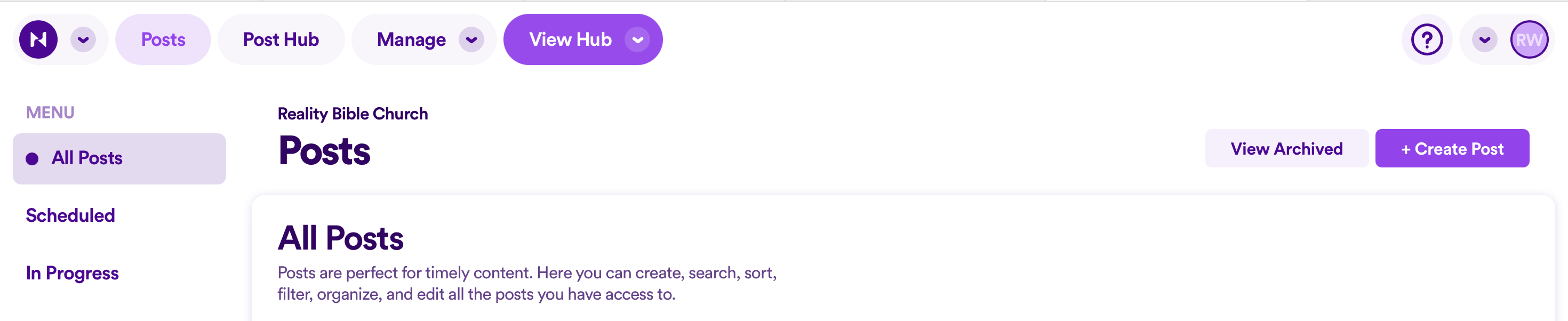
2. Click + Create Post.
From your Posts page, click + Create Post.
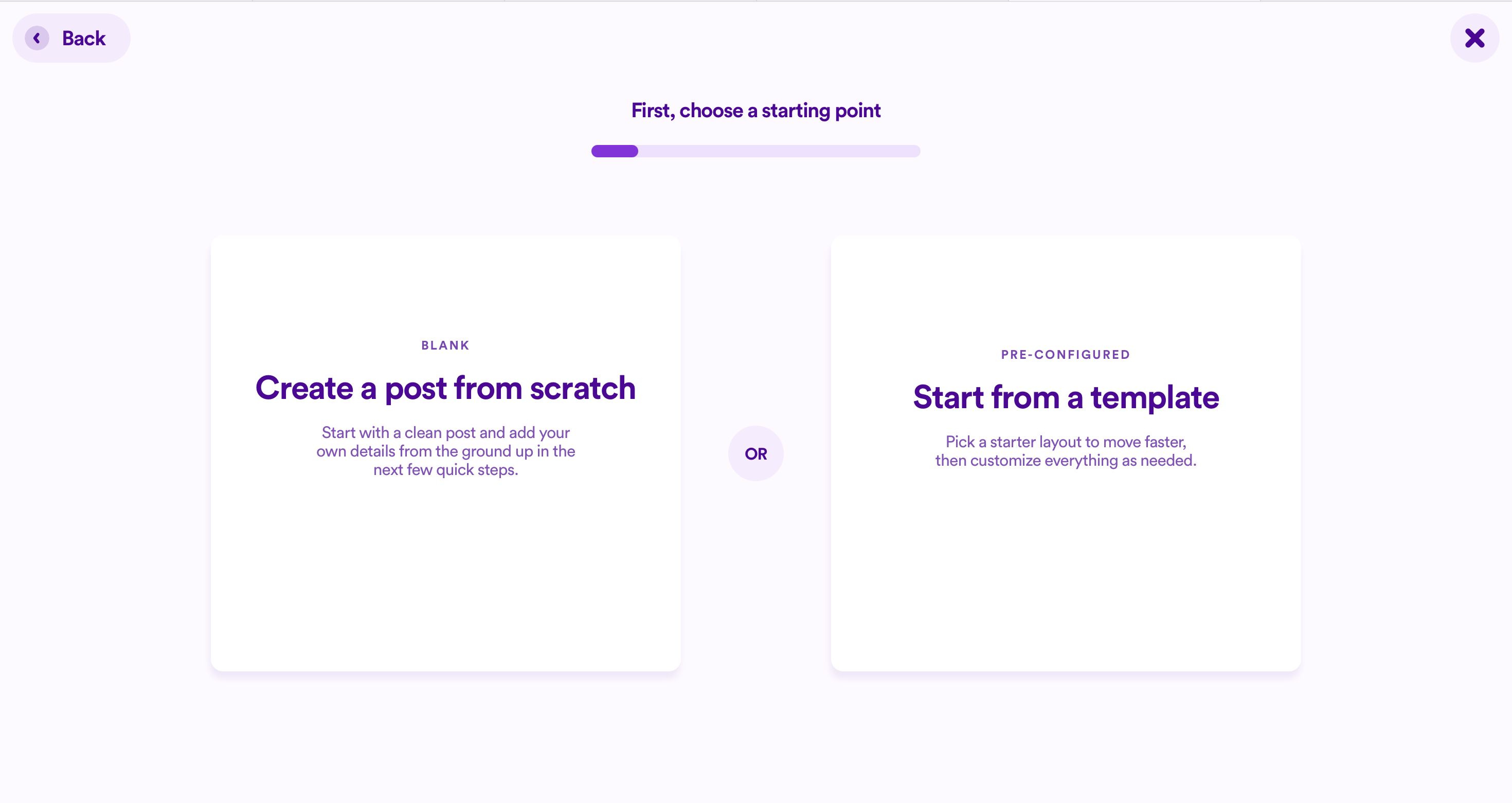
3. Choose a starting place.
- Create your Post from scratch, or
- Create your Post using a template.
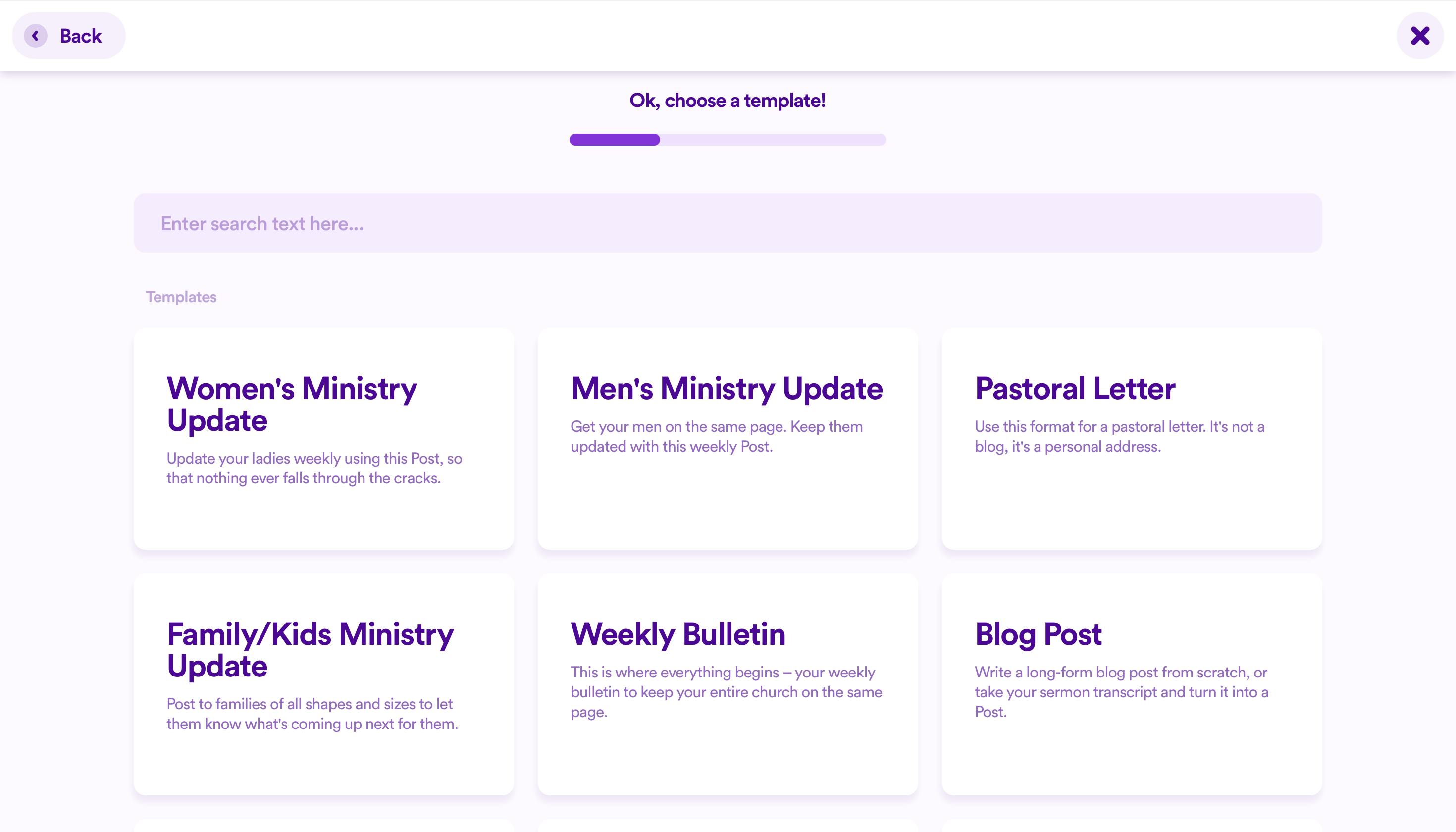
If starting from a template, select which template you wish to use. (Read through the titles and descriptions to aid in your decision.)
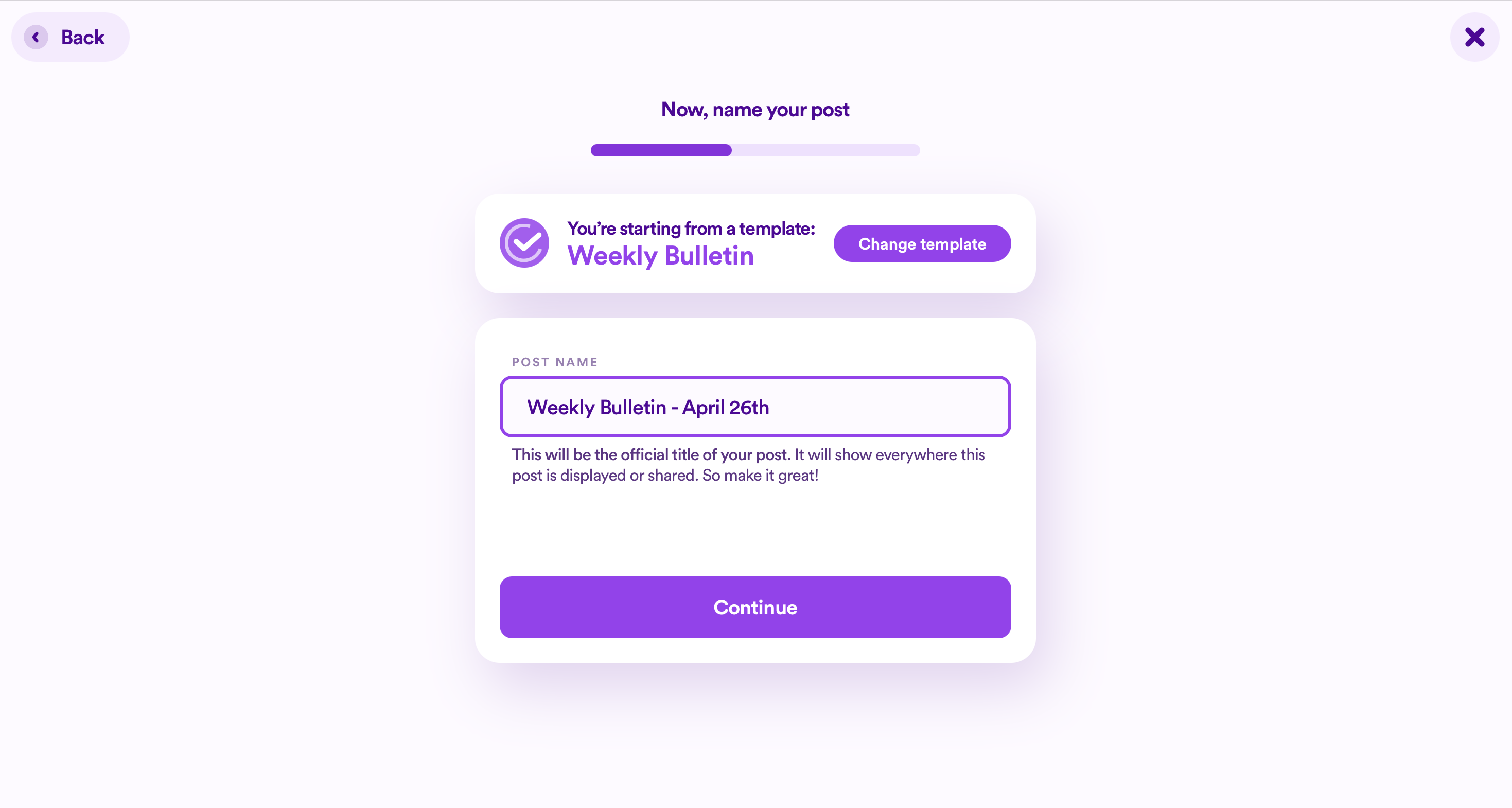
4. Create a Title.
Enter a title and then click Continue. (This title will show everywhere, not just behind the scenes in your Dashboard.)
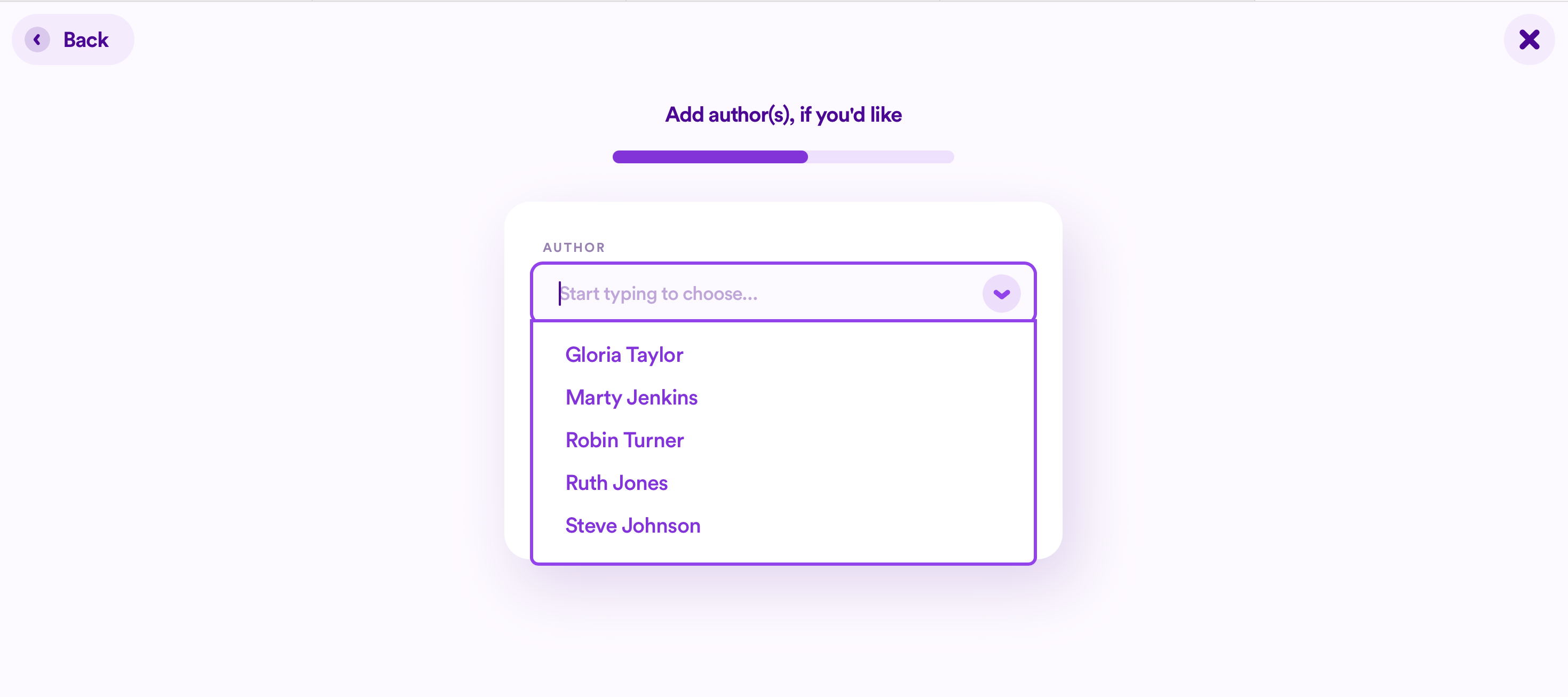
5. Select an Author.
Click the down arrow to reveal the full list of Authors, or start typing an Author's name and select their name from the dropdown menu.
You can add multiple Authors, so once you've selected one Author, you can search for another one right after.
If an Author doesn't exist, you can click the option to Create a new Author.
💡 Tip 💡
Your list of Leaders & Staff from within your People app will also appear here as potential Authors.
Once you've added all appropriate Authors, then click Continue.
6. Select a Collection.
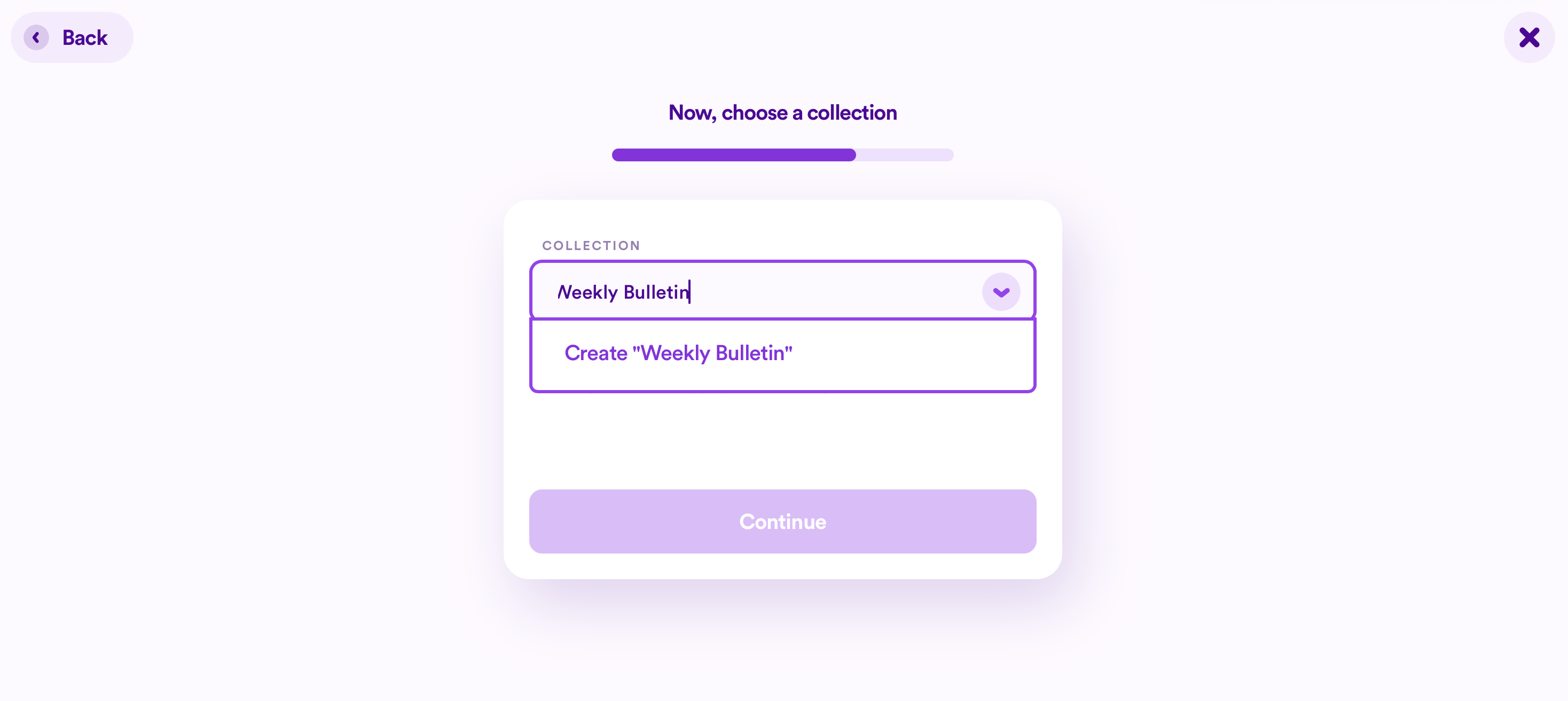
Click the down arrow to reveal the full list of Collections, or start typing a Collection's name and select the Collection from the dropdown menu.
Unlike Authors, you can only connect a Post to one Collection.
If the Collection doesn't exist, you can click the option to Create a new Collection.
Once you've selected a Collection, click Continue.
7. Add a date & time for the Post.
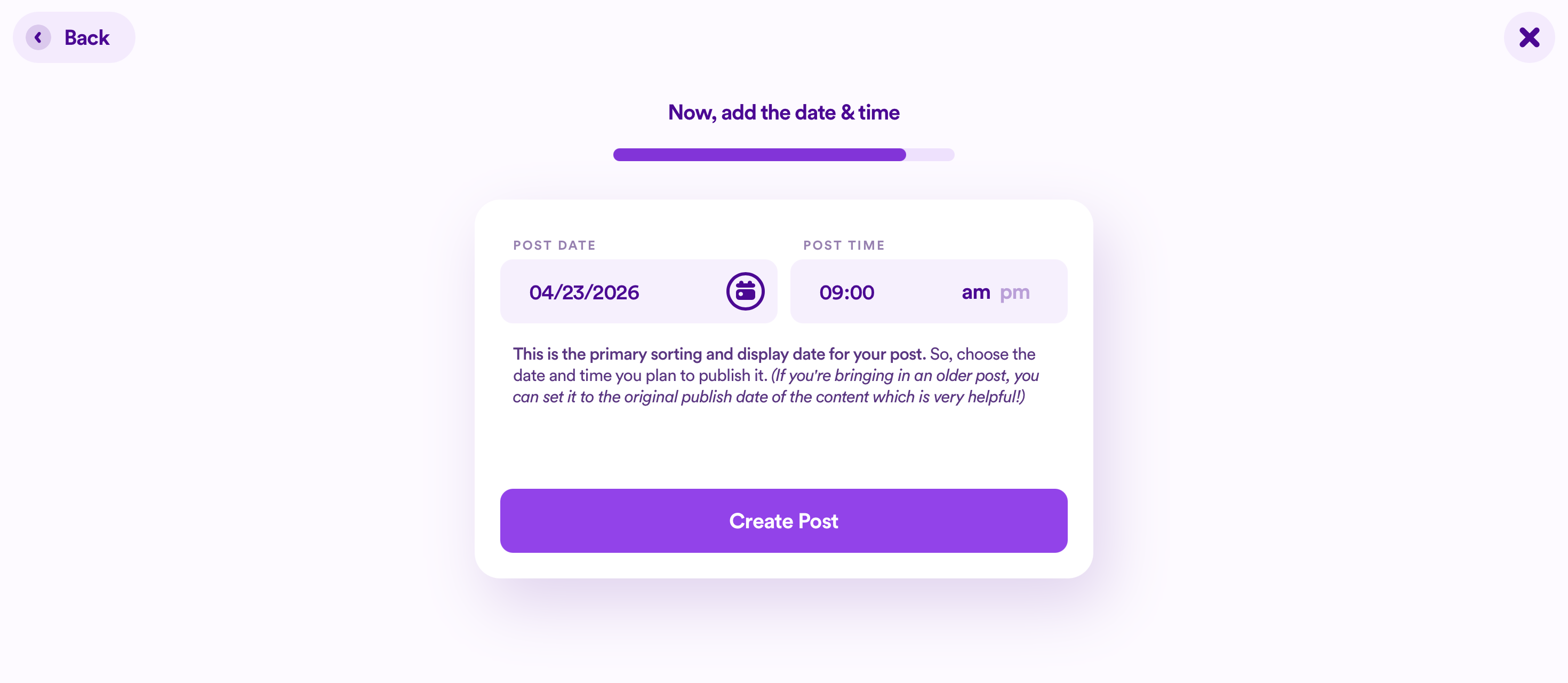
Type in a date in MM/DD/YYYY format or click on the Calendar Icon and select a date from the Calendar that appears.
Then type in a time for the Post. (Typically, the date & time for your Post will be when you first want your Post to go live.)
8. Create the Post.
After adding a date & time for your Post, click Create Post.
Now you can begin crafting the actual Post's contents, adding text, images, buttons, and more!
Edit The Post's Basic Details
Before crafting the actual Post's contents, you can double check that your Post has all the correct basic details for it.
💡 Tip 💡
Any changes you make under the Create tab of the Post editor are autosaved.
1. Open the basic details editor.
Click Edit Basic Info beside the blank space to add an image.
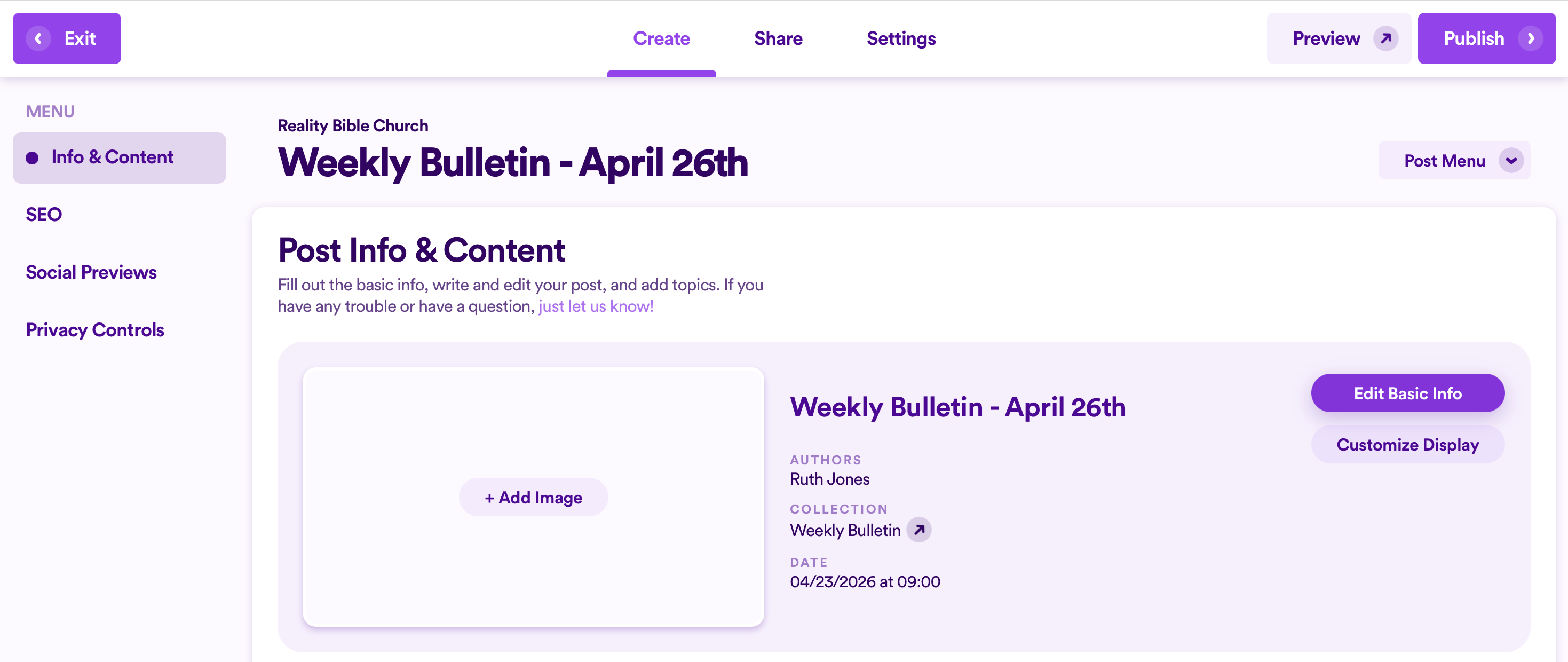
Most of the information you completed in the setup wizard will show up. Here, you will be able to adjust any of the information you already input, as well as add some missing details, like a description and a header image.
2. Adjust the title and add a description.
If needed, you can change the title you previously gave the Post.
Click the text field under Description to add a description to your Post.
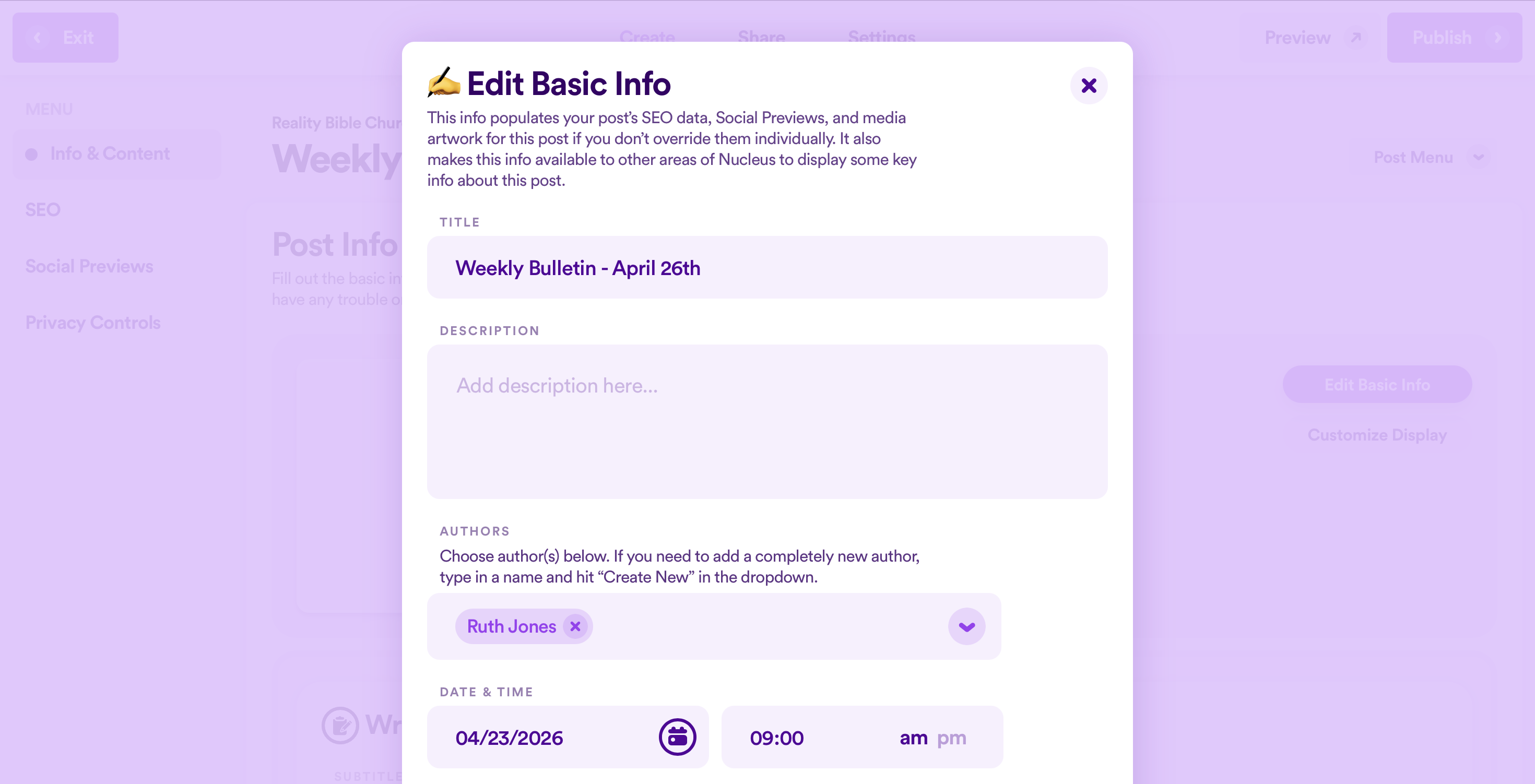
3. Adjust the Authors of your Post.
To remove an Author from the Post, click the X beside their name.
To add another Author, click the down arrow to reveal the full list of Authors, or start typing an Author's name and select their name from the dropdown menu.
If an Author doesn't exist, you can click the option to Create a new Author.
4. Adjust the Date & Time of your Post.
Click on the Date field to type in a new date in the MM/DD/YYYY format or click on the Calendar Icon and select a date from the Calendar that appears.
Click on the Time field and type in a new time, being sure to select the correct am or pm option.
5. Add an image to your Post.
Click + Add Image to open your device's file browser.
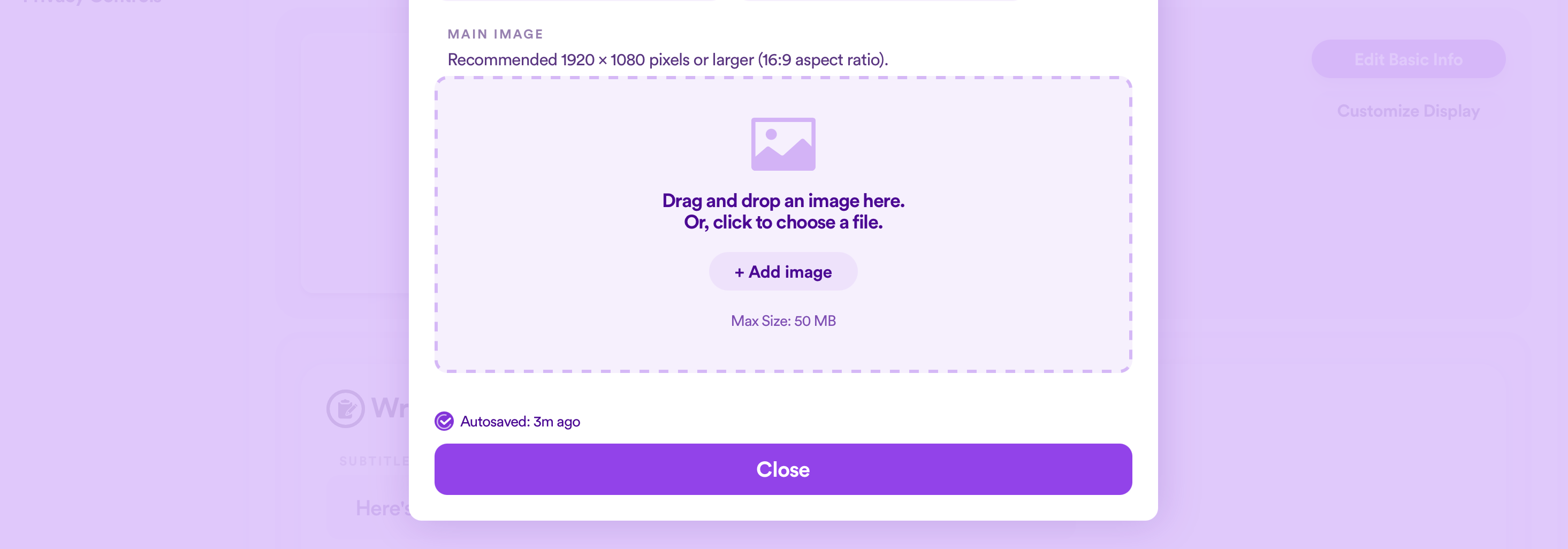
Select the image file (a maximum size of 50 MB) and select Upload, Open, or whatever option your device's file browser shows to continue.
Alternatively, you can drag and drop an image file from your device to the empty image field.
🤷 Optional 🤷
While adding an image to your Post is a great way to complement your Post's information, it is not necessary. This allows you to create and publish a Post in a hurry, with the ability to upload an image later on if needed.
6. Exit the basic info editor.
Once satisfied with your edits, scroll down to the bottom of the screen and click the purple Close button.
Now you can begin crafting the actual Post's contents, adding text, images, buttons, and more!
Add Content To Your Post (Text, Buttons, Images, Videos, Etc.)
💡 Tip 💡
Any changes you make throughout your editing process of the main text field of your Post are autosaved; however, you can always click the Undo or Redo arrow buttons in the text toolbar.
1. Add a subtitle to your Post.
Click the Subtitle text field and type in a subtitle that will appear below the title of your Post.
🤷 Optional 🤷
While adding a subtitle to your Post is a great way to increase someone's understanding of what the Post will be about, it is not necessary to add one before you can publish your Post.
2. Add text to the body of your Post.
In the large text field below Write & Edit Your Post, begin typing your Post's content, or paste in text that you've copied from an outside source.
3. Change the font variation of your text.
The text toolbar exists right above the body text field. You can use this throughout your writing process, or highlight text after you've finished writing to adjust how your text appears.
The first option in the toolbar displays whatever font variation is set for the line or paragraph of text your cursor is clicked on.
To change what variation your text will display as, click the down arrow in the text toolbar.
Then select a variation of that particular type of text (e.g. Paragraph 1, Paragraph 2, Paragraph 3, Paragraph 4).
Alternatively, in the same dropdown menu, click the Back option to select a different category of font (e.g. Headline, Paragraph, Label, or Quote). Then choose which variation of that type of text you'd like.
Whatever variation you choose will affect the specific line or paragraph of text that your cursor is on. If you wish to affect more than one paragraph of text, highlight the full amount of text first before choosing a new font variation.
💡 Tip 💡
The default font variation while writing a Post is Paragraph 3. You can adjust the settings of Paragraph 3, as well as any other variations of text, in your Font Design Settings of Web in your Nucleus Dashboard, though you will require the correct admin access to adjust those.
For some fun, click the smiley face in the text toolbar to add an emoji in your Post.
4. Format your text.
The text toolbar offers several options specifically to format your text.
On a new line in the large text field, choose any of the following options to affect whatever new words you write.
Alternatively, you can highlight any text you've already written, and choose to affect/alter the text you highlight.
Then, in the text toolbar:
- Click the B to bold your text.
- Click the slanted I to italicize your text.
- Click the U to underline your text.
- Click the S to add a strikethrough in your text.
- Click the highlighter to add a highlight to your text.
💡 Tip 💡
While the highlight color will display as yellow in the text field, on the published version of your Post, the highlight color will be more subtle and match your overall Web Color Settings, though you will require the correct admin access to adjust those.
- Click the button with three straight lines to open text alignment options. Then select if you want the text that you've highlighted to be left-aligned, centre-aligned, right-aligned, or justified.
- Click the button with numbers 1, 2, 3 to format your text into an ordered/numbered list.
- Click the button with bullet points to format your text into an unordered/bulleted list.
- While your cursor is on a new line of text, click the button with the horizontal line to add a line break in between paragraphs or sections of text.
ORIGINAL ARTICLE BELOW
Creating a Post can be as quick as just a few clicks and clacks on the keyboard, or as thoughtful and long drawn out as you need your next letter/blog to your church congregation to be. Either way, creating a Post is very easy and is a great tool to use to for communicating both short and long form pieces of content to specific audiences within your church.
To get started, go to your Posts app in your Nucleus Dashboard. Click here for a quick link.
In this guide, we'll cover the following topics. Click on any one to jump ahead.
- But First, What Are Posts & Where Do They Live?
- Add A New Post
- Edit Your Post's Basic Info
- Craft Your Post's Content
- Customize The Look & Feel Of Your Post
- Preview, Publish, Save As Draft, Or Revert Changes
But First, What Are Posts & Where Do They Live?
Each Post is a single entry or update (think of them like a newsletter, blogpost, or even as simple as a short update for an event or ministry). With this being the case, every time you create a new Post you will need to choose which of your Collections it belongs to so that only the correct people are notified that there is a new update, and for private posts, only the correct people can access them. Collections are a way of grouping your Posts together so that the relevant people can stay up to date with what's happening or coming up (like kids ministry volunteers, or men's ministry members, etc.)
You can learn more about creating and managing Collections here.
Add A New Post
To create a new Post, while viewing your Posts Panel, click the + Create Post button.

Next, you can choose to either start your Post from an existing template or start from scratch.

Starting with a template, you'll see a selection of pre-made Posts revolving around common church ministries and usages. Just click on the one you would like to use.

Next, give your Post a name.

After clicking Continue, choose the Author for your Post. (You can add multiple Authors if it makes sense for a particular Post.)
Note: You will need to have previously added an Author under the Manage tab in Posts to have them show up in the dropdown menu. Your list of Leaders & Staff from within your People app will also appear here as potential authors.

Next, choose a Collection for your Post to belong to, or type in the title of the new Collection you would like to create and have your Post belong to.

Then, choose a date and time for your Post. These are primarily used for display and sorting, so we recommend choosing the day and time that you plan on Publishing your Post.

Press Create Post and you'll be able to craft your Post's content 🎉
Edit Your Post's Basic Info
When initially creating a Post, you will have added most of the Post's basic information already. You can always edit these details now or later.
While editing a Post, click the Edit Basic Info button.

Here, you can update the existing Title, Author, or Date, as well as enter in a Description of this particular Post.

You can also scroll down to add an image for your Post. This image will be used in the background for the header of your Post when someone views it on your website.

Once you're happy with your changes, click Close at the bottom.
Note: You do not need an image for a Post, but an image certainly helps to capture the attention of your audience when they're reading your new Post. You can choose to negate an image on a per-Post basis; however, if you don't want to have to create and upload a primary image for your Posts, you can turn off the image placeholder areas completely for all Posts, in favor of focusing on each Post's title and basic info instead. You can toggle this option on/off here in your Post Hub's settings.
Craft Your Post's Content
Once you've created your Post, you can now edit the content to make it your own and share the inspiration, information, or encouragement for your church, ministry, or team.
When it comes to the editor, there are plenty of options to ensure that your Post appears the way you would like. For instance, you can choose whether you want a subtitle for your Post. You can then scroll below to add the main content for your Post.

The editor has all of the expected tools. When it comes to text, you can Bold, Italicize, Underline or Strikethrough. You can also choose to Highlight portions of text.
You also can select the style of text you would like by using the dropdown to select the option you want: Headline, Paragraph, Label, or Quote.

Moving along the editor menu, you can hyperlink a section of text to any url by highlighting the text you want to hyperlink, then click the Link button and follow the prompts to select a Page, Sermon, Flow, etc. from within your Nucleus account, or paste in a url of your choosing.
If you want to add a button that people can click on (which is just a fancy form of a hyperlink), you can follow the exact same instructions above for creating a hyperlink:
- Highlight text.
- Click the Link button in the editor tools.
- Choose what type of hyperlink and fill in the necessary details.
- Select "Button" and choose which style of button.
- Click Add.
Note: Button styles are controlled by button styles within Nucleus Web in your Web Design Panel here.

The next option in your Post editor is the option to add a Scripture Reference. (This button is the one with the cross on it). Simply click and follow the prompts to choose the version, book, chapter, and verse of the reference you would like to include.

The next two buttons allow you to add either an Image or a Video to your Post. Just click on the corresponding button and follow the prompts to either upload an image or link a video file.

The final few buttons allow you to adjust the appearance of your Post by adding a Line Break or Emoji, changing the Alignment of your text, and creating Bulleted or Numbered Lists.
And at the very end are the Undo and Redo buttons, which allow you to easily undo or redo changes that you just made.
Once you're done writing and formatting the content of your Post, scroll down to the very bottom and add one or more Topics to your Post. You can choose from the dropdown menu pre-existing Topics, or type to create a new one.

Customize The Look & Feel Of Your Post
Nucleus also allow you to make some customizations to how your Post appears. While editing a Post, select the Customize Display button.

First, you can adjust the color palette used for this particular Post.
Note: The color options you see displayed here are the ones you have selected in your website design settings. Colors are an overall design feature, so to update the colors for your website as a whole, you can do this be going to Web and choosing the Design tab here.

To adjust the background of your Post's header, click Background.
Here, you can adjust the image you may have already uploaded to your Post, upload a new one, or link a video to display in a looping fashion.

Below this, you can adjust the color palette for the header of your Post, which affects how your image or video will display.
For a full run through of using these background features, you can find that here.
Preview, Publish, Save As Draft, Or Revert Changes
Once you've finished writing your Post, and have it set up the way you think you would like it to be, the next step is to Preview it. Using the Preview button in the upper right hand corner will allow you to see your Post the way it will appear on your website to other people.

Make any adjustments you would like. Then once you're ready, click the Publish button in the upper right hand corner and choose either the option to publish immediately, or select the option to add a date and time in the future for when this page should be published.

If you pick the Choose Date & Time option you will also be given the option to select a date and time in the future for the Post to automatically unpublish.

Or if you're not quite ready to Publish your Post, you can save your Post as a draft by clicking the Exit button in the upper left hand corner and choose the Save & Close option.

What Next?
Now that you've got the basics of creating a Post down, you can learn some advanced options for your Post, as well as how to manage Collections, set up your Post Hub, and more!